How to sign in to Slack with a QR code
When you’re signed in on Slack (“Slack is a channel-based messaging platform”) on desktop, you can use that to sign in on your phone too (kind of, keep reading).
When you open the Slack app on a phone, it guides you on how to do that.
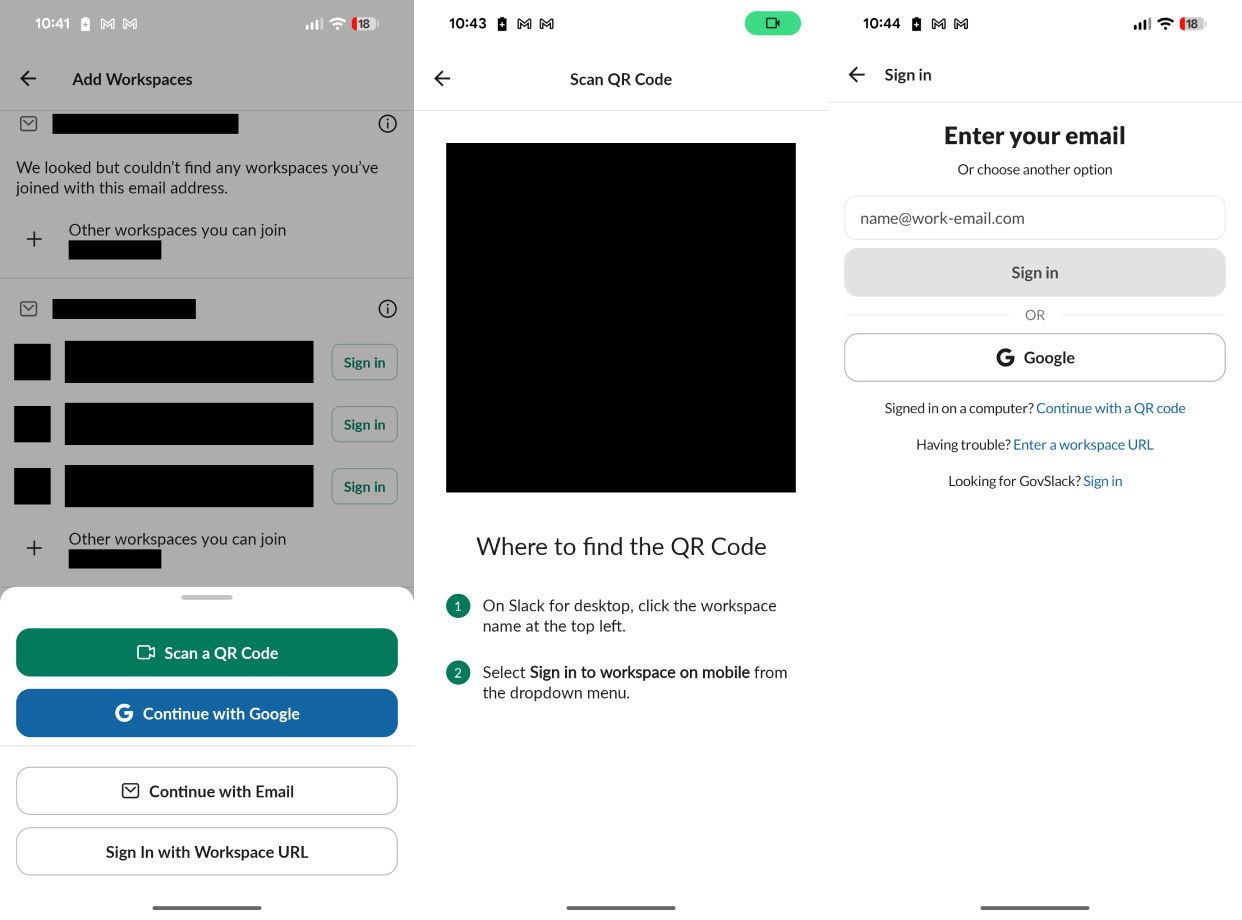
Left: a screen showing that you can sign in by scanning a QR code. Center: a screen for signing in by scanning a QR code with a camera preview (edited out in this image) and instructions on how to get the QR code. Right: a screen for signing in with email reminding you that you can use a QR code instead.
We’re instructed to click the workspace name on desktop to get a dropdown menu. Here’s that.
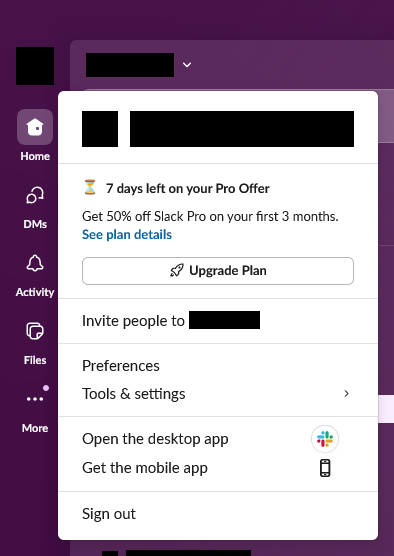
The dropdown menu on desktop, with a “Get the mobile app” option.
And that’s weird, because there is no “Sign in to workspace on mobile” option as we’re instructed to select.
But why? Haven’t I seen that option before?
In my various various other workspaces, the menus all have it.
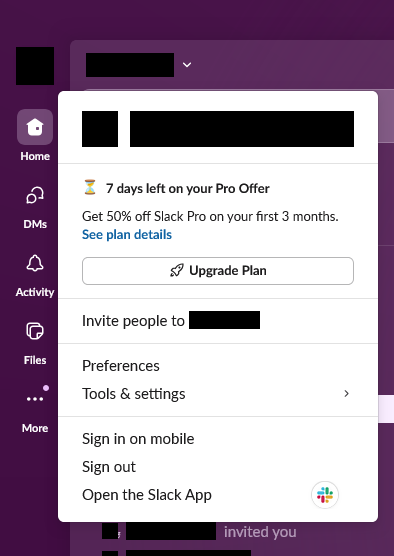
The “Sign in on mobile” option. (This image I produced by modifying Slack [keep reading] on the same workspace as above, so that I wouldn’t have to share a screenshot of a real workspace. If there are any inaccuracies with real Slack, then whoops.)
Was I in some kind of A/B test? I bugged support about this. They said this:
…
We changed the login flow to show the “Download the Slack app” option when a workspace doesn’t detect that you’ve logged in on a mobile device yet. I’ve forwarded feedback to our internal teams that this process is a bit confusing for users who already have other workspaces in a mobile app or have already downloaded the app that this process could be a bit smoother.
In the meantime, users will need to sign in directly from the mobile app. Access to the QR code is not required for the initial sign-in; it becomes available after the first mobile login to quickly launch the app and workspace.
If you haven’t logged in on mobile before, you should follow the steps directly from the mobile app.
Open the Slack mobile app, then tap Sign in.
Choose a sign-in option and follow the prompts.…
Warmly,
…
How dare people use a feature for signing in when they’re not signed in!
(This support exchange took place in January 2026.) (“Get the mobile app” actually displays a QR code too, but it’s only a link to the app; scanning it with Slack’s sign in flow yields “Something went wrong. Please try again!”) (Trying again does not make scanning the wrong kind of QR code work.)
Actually you can bypass this rule client-side.
- Go to
gantry-v2-async-gantry-v2-shared-boot-async.(whatever).min.jsin the devtools debugger. -
Search for
PERSISTENT_MOBILE_PROMOand find a line like this:tj = (0, V.d4) (e => (0, te.Hp) (e, X.xu.MAIN_MENU)) === X.ze.PERSISTENT_MOBILE_PROMO, - Set a breakpoint after it.
- Open the workspace dropdown, which should hit that breakpoint.
- Go over to the devtools console and set
tj = false. - Resume the script.
I used this to take the screenshot with the “Sign in on mobile” option visible. The option seems to be functional when un-hidden this way.
My last post was about either How far down you can go with nested subscript elements on GitHub or Many pads of paper that are all slightly different sizes. Find out which.